Free Czech AI Voice Generator, Convert Your Text to Voice

AI Voice Generator: Effortlessly transform text into lifelike speech! No login required, completely free. Whether you need a virtual assistant, video narration, or want to engage naturally with your audience, our AI voice technology meets all your needs. Convert Czech text to vivid speech and save as MP3 in seconds. Let AI Voice Generator breathe life into your projects!

0 / 3000
Login for more

Czech text to speech online

Everything You Need for Czech Text to Speech

Czech text to speech turns written Czech into generated audio you can preview and download. Paste your script into the tool above, select Czech (Czech Republic) and a voice, then create an MP3 without recording the text yourself.

Voice studio

Choose a Czech voice for your content

Czech (Czech Republic) includes Antonin and Vlasta. Read a short line with each voice, ideally one that contains ř, a consonant cluster, and a number, then pick the result you prefer.

  • Czech female and male voices
  • Preview before generating
  • Browser playback and MP3 download

Text to finished audio

Generate Czech speech from written text

Czech places stress on the first syllable of a word, which makes long words easier to predict than in some languages, but the ř sound and clusters of consonants are still worth hearing before you commit to a full script.

More than text to speech

Czech text to speech tools

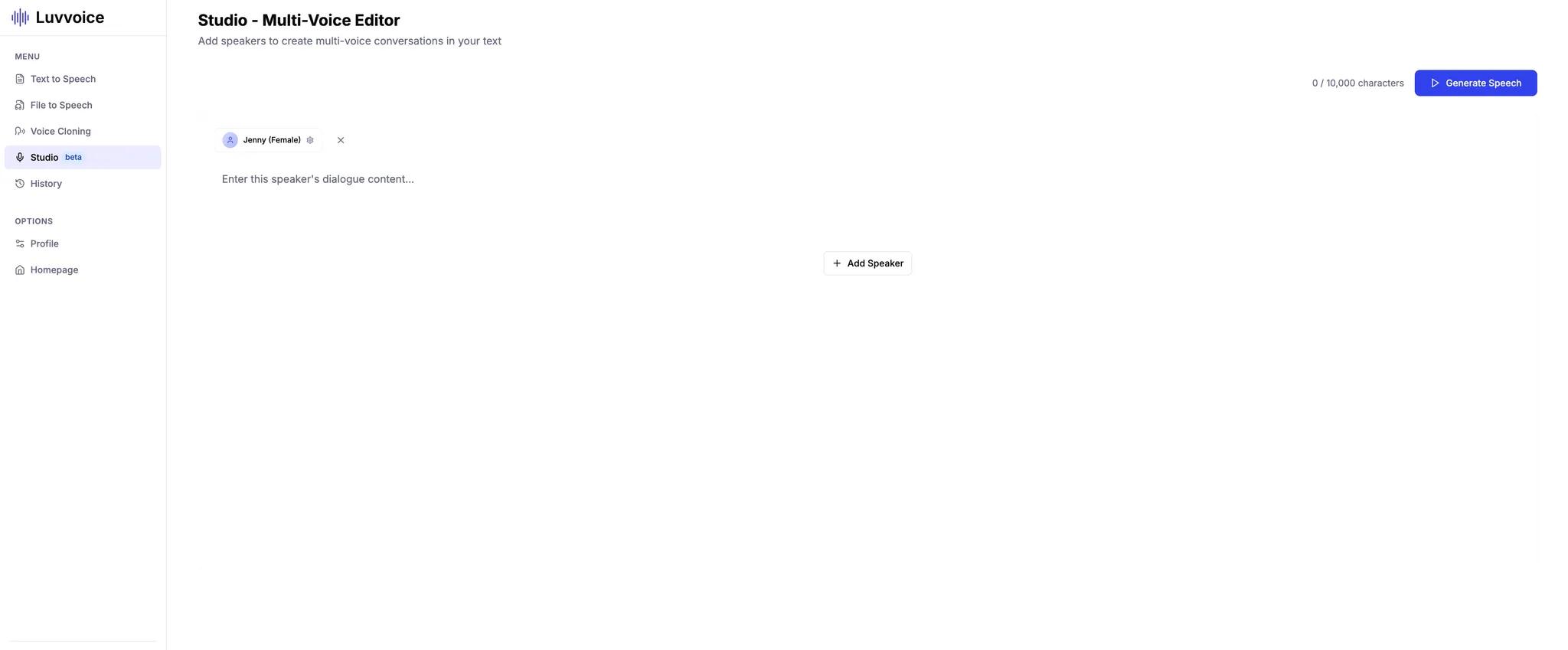
Move from a short voice test to complete documents, multi-speaker projects, audiobooks, and custom voices.

Simple workflow

How Czech text to speech works

Four clear steps take a script from the editor to a voice you can preview and download.

  1. 01

    Paste the Czech script

    Enter the text you want converted into spoken Czech.

  2. 02

    Choose a voice

    Select Czech (Czech Republic) and preview Antonin or Vlasta.

  3. 03

    Generate Czech audio

    Submit the script and let Luvvoice create the spoken version.

  4. 04

    Listen and download

    Check ř, consonant clusters, and numbers, revise if needed, and save the MP3.

Everyday projects

Czech text to speech use cases

Czech video voiceovers

Prepare narration for explainers, presentations, and short-form videos.

Product and training material

Turn written instructions, onboarding copy, and training scripts into draft audio.

Czech study and pronunciation

Create listening material from vocabulary lists, reading passages, and revision notes.

Accessible articles and guides

Provide Czech written content in an alternative audio format for easier listening.

Quick answers

Frequently asked questions

How does Czech text to speech work?

Paste Czech text, choose Czech (Czech Republic), select a voice, and generate the speech for playback or MP3 download.

Which Czech voices can I compare?

Luvvoice offers Czech (Czech Republic) voices including Antonin and Vlasta, with additional options shown in the selector.

Can I download Czech speech as an MP3?

Yes. Once the audio is generated, listen in the browser and download the completed Czech speech as an MP3 file.

How should I check the ř sound and Czech numbers?

Use a short sample that contains ř, the longest consonant clusters, and the numbers and units from your project. Revise anything that is hard to follow before generating the full script.

Do I need special software for Czech text to speech?

No. Luvvoice runs in the browser, so you can paste or upload Czech text and generate speech without installing recording or editing software.

Which file formats can I use with Czech text to speech?

Luvvoice File to Speech supports TXT, PDF, DOC, DOCX, ODT, XLSX, XLS, and ODS files. Upload a supported document or spreadsheet and choose a Czech voice.

Can I use free Czech text to speech online?

Yes. You can try Czech text to speech online with the free usage currently shown for your account, without installing recording software.

What can I use Czech text to speech for?

Use it for video narration, podcasts, training material, product instructions, language lessons, accessibility, and proofreading by listening.

How do I change the speed and pitch of Czech text to speech?

Choose a Czech voice, select the settings button beside the voice selector, and adjust Rate, Pitch, and Volume before generating the audio.