Luvvoice Launches Multi-Speaker, Multilingual TTS
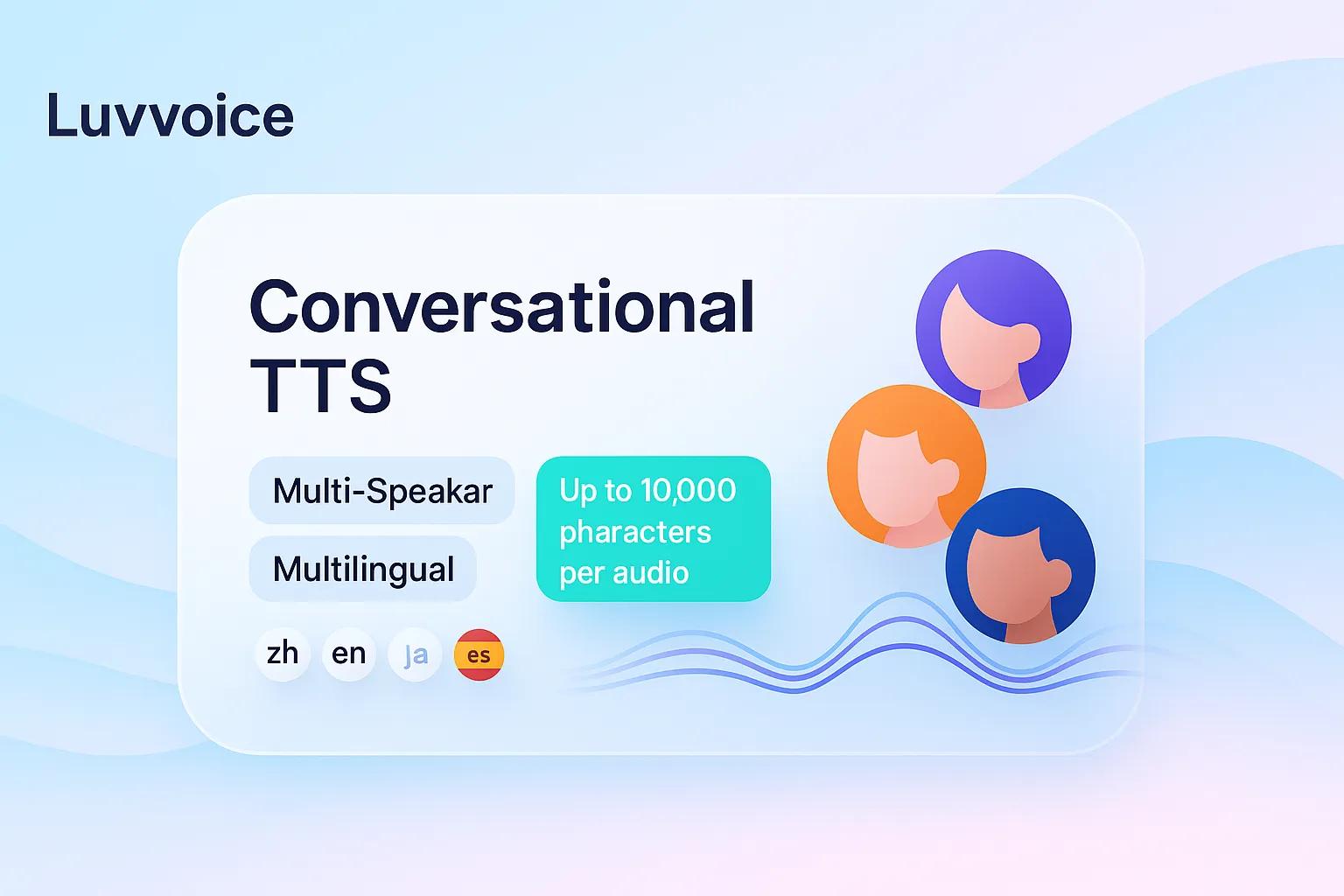
Luvvoice is introducing multi-speaker, multilingual conversational TTS. You can assign multiple speakers (distinct timbres and roles) within a single audio file and switch languages seamlessly in the same track. Each render supports up to 10,000 characters, making it ideal for long-form production and scaled content workflows.
Highlights
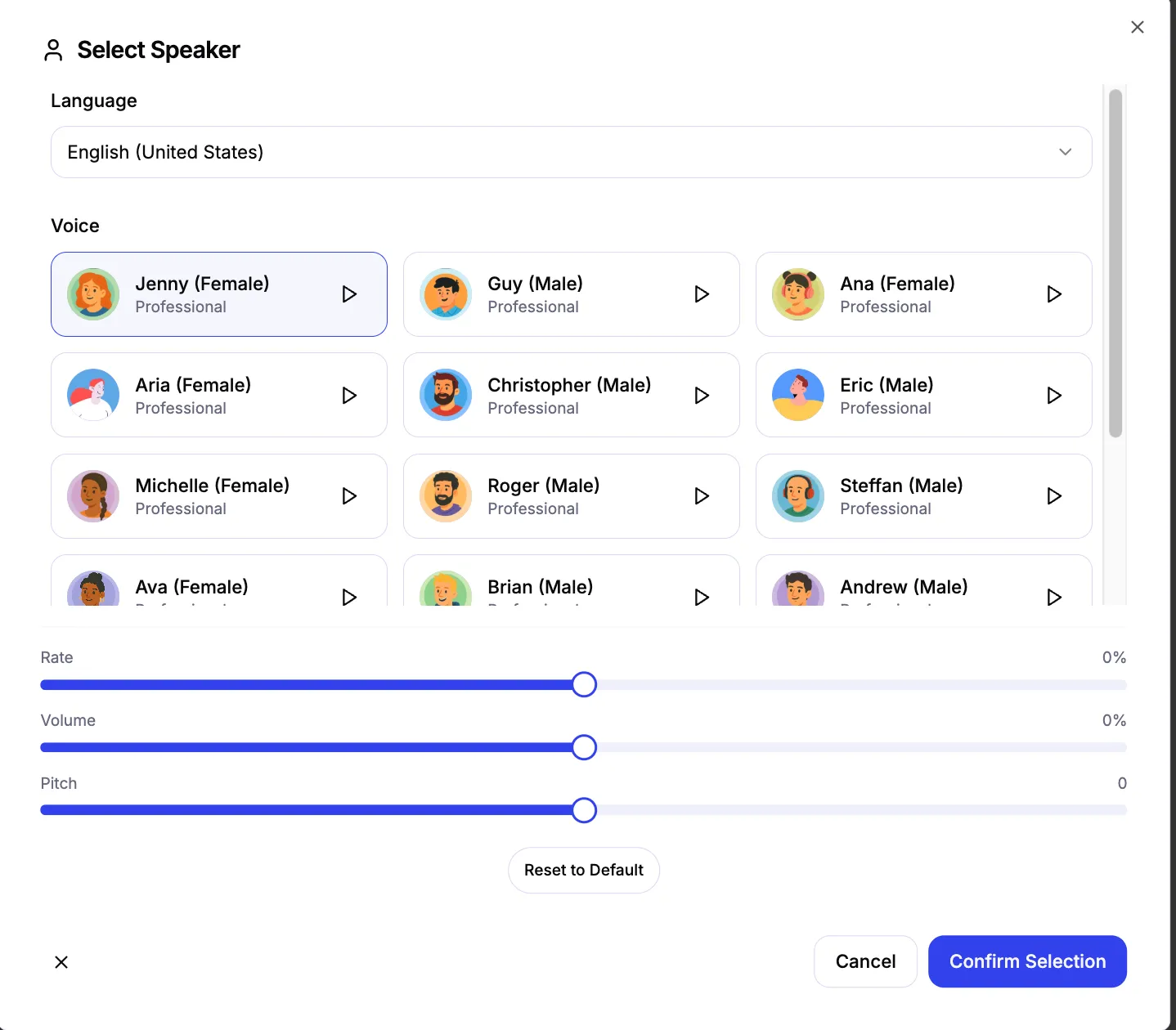
- Multi-speaker dialogues: Assign a unique voice, volume, pitch, and rate to each role. Per-turn emotions and custom pauses are not supported in this release.
- Multilingual mixing: Switch naturally among English, Japanese, Spanish, and more within a single audio file.
- Long-form capacity: Up to 10,000 characters per audio, suitable for long scripts and instructional content.
- One-click rendering: Preview the default voice by clicking the avatar, edit scripts visually, and download the audio after rendering.
- Controllable parameters: Set rate, volume, and pitch at the turn level; per-turn emotions and custom pauses are not supported.
- Stable synthesis: Long-text segmentation and stitching reduce interruptions and artifacts during rendering.
Get Started Now
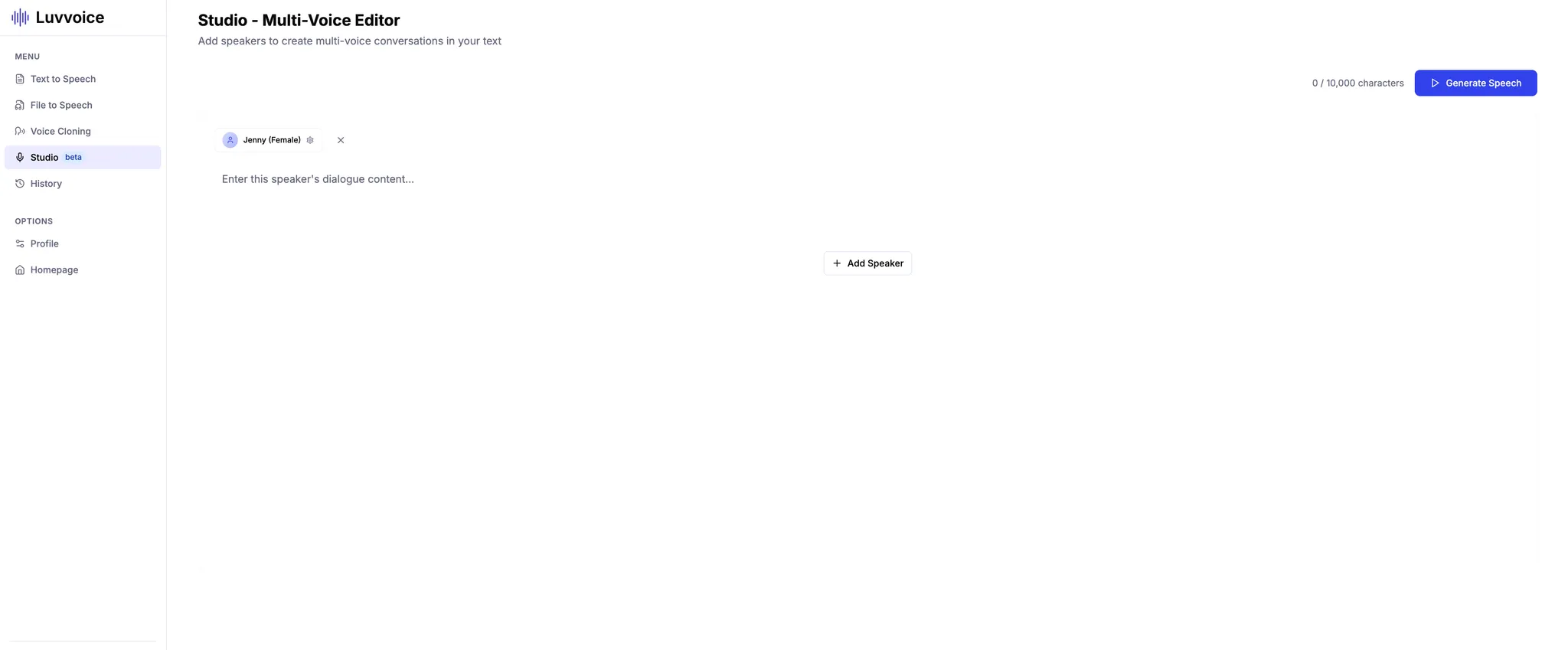
Visit luvvoice.com, sign in, go to the Dashboard, open Studio, select Add speakers, create your multi-speaker dialogue, and start rendering.
Use Cases
- Podcasts and interviews: Convey a natural dialogue feel through variations in timbre and rate, accelerating production.
- Courses and training: Switch instructor styles, support mixed Chinese–English delivery, and handle terminology clearly.
- Product demos and explainers: Use a "user, support, narrator" dialogue structure to communicate complex flows.
- Audiobooks and scripts: Keep roles well defined and tonal style consistent to save production time.
- Marketing and global launches: Generate multiple language versions from the same script while preserving brand voice.
Getting Started in Three Steps
Step 1: Create a dialogue script. In Conversational TTS, add lines turn by turn and choose a speaker and language for each.
Step 2: Configure parameters. Adjust rate, volume, and pitch per turn. Per-turn emotions and custom pauses are not supported.
Step 3: Render and download. After previewing, download the audio file. Save your project for future iterations.
Writing Tips for Multilingual Scripts
- Set the language explicitly for each turn to ensure smooth mixing.
- For names, brands, and technical terms, include spelling or phonetic hints to minimize mispronunciation.
- Use appropriate punctuation to elicit natural pauses; custom pause control is not currently available.
- Keep each role consistent in voice and parameters for a unified style.
- Produce a short sample before rendering the full piece to reduce rework.
Character Count and Duration (Guidelines)
At typical speaking rates, Chinese is roughly 250–350 characters per minute; English is roughly 130–180 words per minute. Produce a 1–2 minute sample to confirm style and pacing before final rendering.
Frequently Asked Questions
Q1: What is the maximum character count?
A: Up to 10,000 characters per audio. For longer content, split the script into multiple renders and stitch them together.
Q2: Can I switch multiple speakers and languages within one audio?
A: Yes. Each turn can have its own speaker and language.
Q3: Are per-turn emotions or custom pauses supported?
A: Not in the current version. The system infers natural pauses from punctuation. Future enhancements will be announced on the official site.
Q4: What if rendering fails or stalls on a specific turn?
A: Check for unusual symbols or excessively long sentences. Try splitting lines or reducing the character count per render and try again.
Q5: Can I export subtitles?
A: Rendering focuses on audio at this time. Subtitle and timecode export are on the roadmap and will follow official announcements.
Best-Practice Checklist
- Draft the dialogue structure first, then select languages and voices, align terminology and pronunciations, and render the full script.
- Keep one idea per turn; avoid overly long sentences and use clear punctuation.
- Maintain a terminology list for consistent spelling and pronunciation.
- Keep role identity consistent: name, voice, rate, volume, and pitch.
- Use segmented rendering and review for long scripts to reduce rework.
Roadmap (Preview)
- Subtitle and timecode export
- Additional style templates
- Batch job orchestration and acceleration
All items are subject to official announcements and console updates.
Start Today
You can start today at luvvoice.com. Sign in, open the Dashboard, go to Studio, and select Add speakers to create a multi-speaker, multilingual dialogue and render your audio. To ensure consistent style and pacing, we recommend producing a 1–2 minute sample first before rendering the full script.
Each audio supports up to 10,000 characters; for longer content, split your script into multiple segments, render them separately, and stitch them together in post. We will continue to refine cross-language intelligibility and synthesis stability, and we plan to introduce subtitle and timecode export, additional style templates, and batch orchestration and acceleration.
Release timing will follow official announcements and console updates. If you need migration help or starter templates, contact us—our team can share best practices tailored to podcasts, course production, and product explainers.